The Workflow
Six Phases, In Order
Path A runs Phases 1, 2 and 5 only. Path B runs all six — and Phase 4 is the one that can stall, so plan the day around it.
Pre-work — before you travel Path B
Complete all of this before arriving on site. None of it can be done at the desk.
Apple Configurator is only used to add a Mac that isn't in Apple Business Manager yet. The 16 Path A machines never touch it. Set it up before you travel regardless — it costs ten minutes at home and cannot be done at the desk.
-
Accept the Apple Business Manager invitation.
Shawn has sent an invite to create your Managed Apple Account. It ends in @thermoryusacom.appleid.com — this is not your normal Apple ID and not your Thermory email. Complete setup fully, including two-factor.
-
Install Apple Configurator on your iPhone.
Free from the App Store. Requires iOS 16 or later. The iPhone app is the one that can enroll Macs — the Mac version cannot.
-
Sign in to Apple Configurator with the Managed Apple Account.
Not your personal Apple ID. The Settings screen should show THERMORY USA, LLC as the organization.
-
Configure the two settings shown below.
Set once, then leave alone. If either is wrong, every enrollment silently goes to the wrong place.
-
Confirm you can actually manage devices in Intune.
Before you fly: verify you can assign and remove an enrollment profile on a test machine. This is the current blocker — see Open Items.
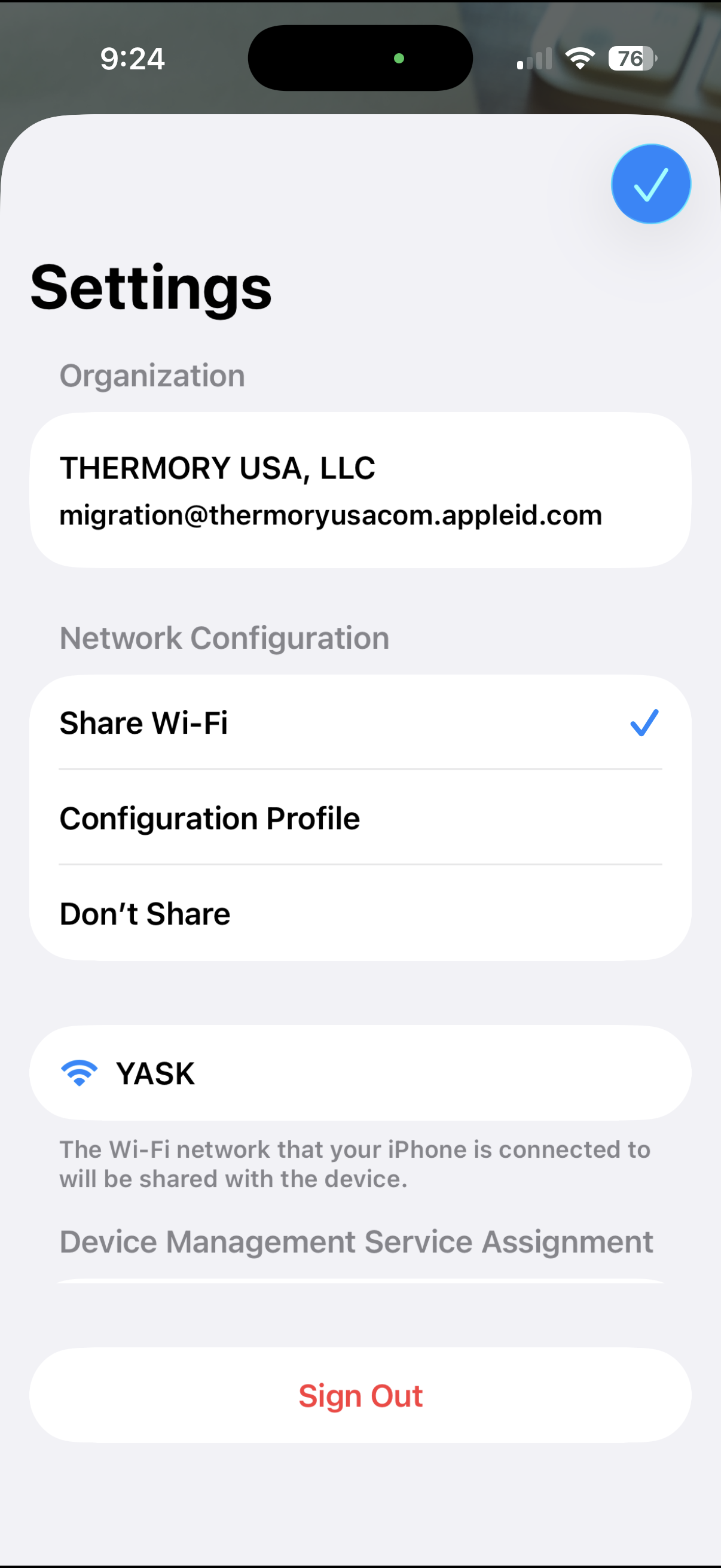
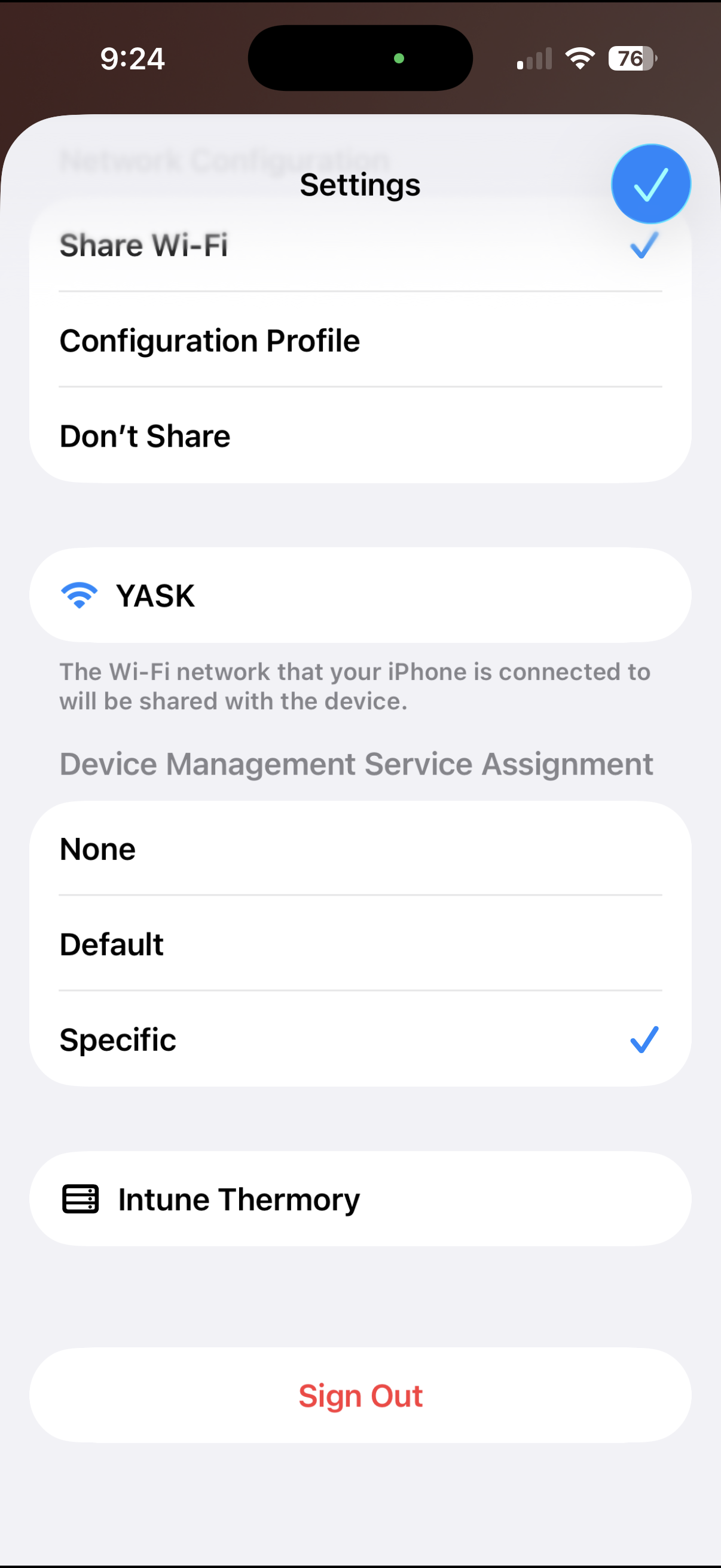
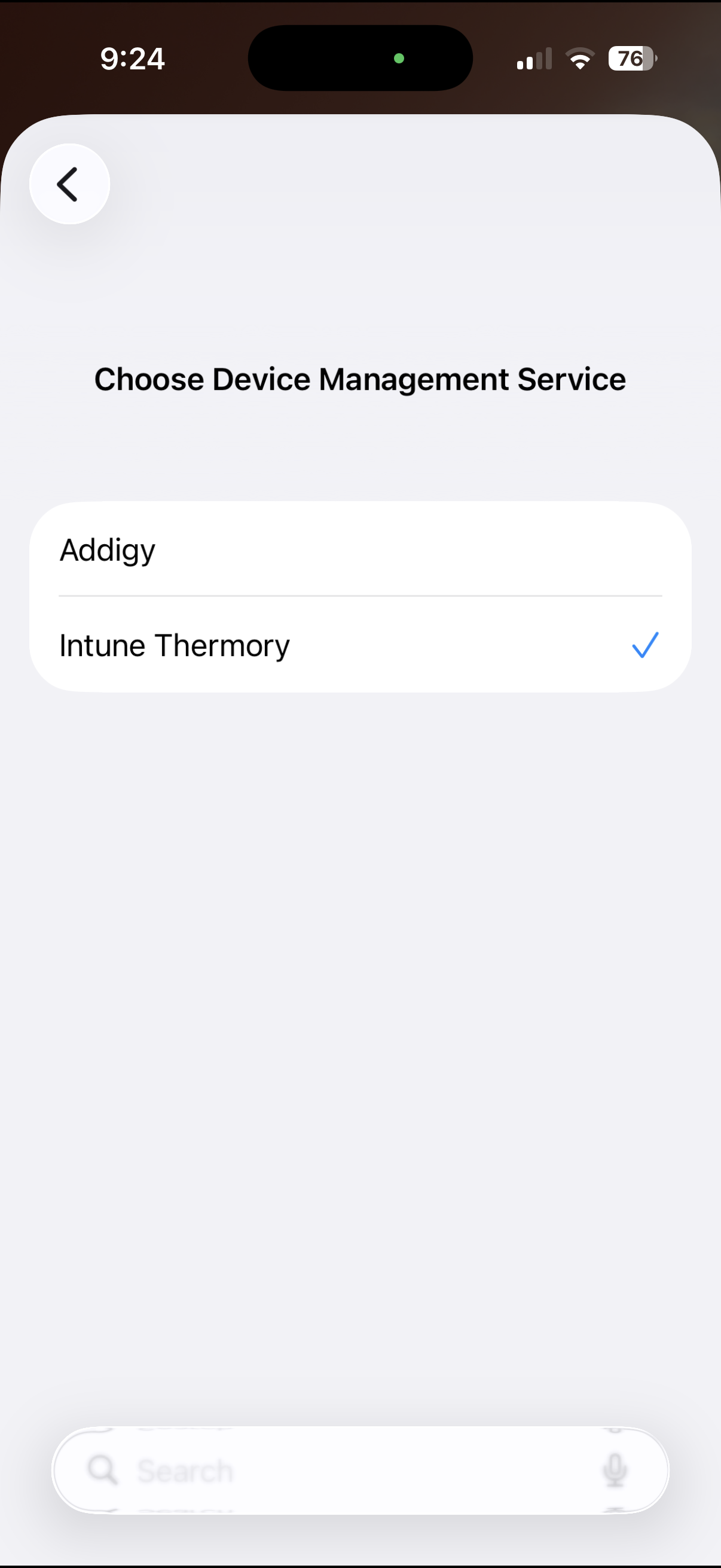
The screenshots show YASK because that was Shawn's network at the time. Yours will differ — and that matters: whatever network the iPhone is on is the network it hands to the Mac. Before you start, put the phone on the network the Mac should end up on.
Addigy is still listed as a device management service. We are migrating off it. If a Mac gets assigned to Addigy instead of Intune Thermory, it enrolls into the wrong MDM and you erase and start over. Verify Specific → Intune Thermory before the first machine, and spot-check after any app update.
Prep the Mac Path A Path B
On site · ~5 minutes · Both paths · Do not skip step 1
-
Write down the serial number, then look it up in the roster. Do this first.
→ About This Mac. Once the Mac is erased you cannot read the serial from the OS — and this one number decides both which path you're on and, on Path B, how you find the machine again in Phase 4's list of serials.
Confirm the serial matches the person you're standing with. If it doesn't match, or isn't in the roster at all, the machine is Path B. If several machines are running at once, label each serial with the user's name.
-
Confirm Desktop and Documents are fully synced to OneDrive.
Open the OneDrive menu bar icon and confirm it reads "Up to date" — not "Syncing." Anything unsynced is gone permanently after Phase 2.
-
Ask about bookmarks.
This is the one thing users reliably panic about afterward. Two cases:
Signed in to Chrome with their Thermory USA account — nothing to do. They sign back in on the rebuilt machine and bookmarks, extensions and history come back on their own.
Not signed in — export before erasing. Chrome → Bookmarks → Bookmark Manager → ⋮ → Export Bookmarks. Save the HTML file into OneDrive, not the Desktop, and import it after Phase 5.
-
Check for anything else outside Desktop and Documents.
Mainly Downloads and anything saved to a local-only folder. OneDrive folder redirection does not cover these.
-
Sign out of iCloud and Find My.
→ System Settings → [Apple Account] → Sign Out. Skip this and Erase All Content and Settings will demand the user's personal Apple ID password mid-wipe — and if they don't remember it, you are stuck with a half-erased machine.
Erase the Mac Path A Path B
On site · ~5 minutes, mostly unattended · Both paths
-
Open System Settings and run Erase All Content and Settings.
→ System Settings → General → Transfer or Reset → Erase All Content and Settings
-
Let it restart and complete.
Not time-intensive. The Mac reboots and comes back at the Pick a Language screen. Leave it there.
If this machine is Path A, it is already in Apple Business Manager with an enrollment profile assigned. Do not open Apple Configurator. Do not look for the blue orb. Just walk it forward through Setup Assistant — it will find its own profile and enroll itself. Go straight to Phase 5.
Phases 3 and 4 exist to put a machine into that state. A Path A machine is already there.
Add the Mac to Apple Business Manager Path B only
On site · ~2 minutes · Path B only · The step that must be timed correctly
-
Leave the Mac on and advance past Pick a Language.
The enrollment target appears in the gap between the language screen and the country screen.
-
Watch for the blue orb.
A floating blue shape made of many dots, slowly rotating. This is the Mac broadcasting that it is available for Configurator enrollment.
-
Open Apple Configurator on the iPhone and point the camera at the orb.
Hold steady until it registers. The Mac is added to Apple Business Manager and assigned to Intune Thermory. Your iPhone's Wi-Fi credentials are handed over at the same time.
-
Confirm the "Added" screen, then choose Shut Down — not Restart.
Go to Phase 4 and come back to power it on.
Add this Mac to Your Organization
Position this image in the frame of Apple Configurator.
Added
This Mac has been added to “Thermory USA, LLC”.
Assign this Mac to an MDM server in Apple Business Manager to configure its enrollment settings and enable Automated Device Enrollment.
The Mac sometimes has trouble reaching the internet during this step. It is common and it is not a sign anything is broken. Stop as soon as it works:
- Just try again. Re-scan the orb. A surprising share of failures clear on the second attempt. Do this before anything else — it costs ten seconds.
- Join Wi-Fi manually, then back out. Go forward through Setup Assistant until you reach the Wi-Fi picker and connect. Then back up all the way to the language screen. Advance again and the orb reappears, this time with a working connection.
- Restart the Mac. Worst case. You have lost nothing — the machine is still freshly erased, so you land back at the language screen and start Phase 3 over.
None of these risk the enrollment. Nothing has been assigned yet, so there is nothing to corrupt.
This is the step that breaks the whole process if you get it wrong. Being in Apple Business Manager is not the same as being assigned an enrollment profile in Intune. The Mac asks Apple "do I have a profile?" exactly once, during Setup Assistant.
If you restart now, Intune does not know the machine exists yet, Apple answers "no profile," and the Mac sets itself up as an ordinary personal computer. It will never retroactively enroll. The only recovery is to erase and start over from Phase 2.
Apple's own guidance is explicit: do not proceed through Setup Assistant after adding a device manually until it has been assigned. Shut Down parks the machine safely while you do Phase 4.
Assign the enrollment profile in Intune Path B only Unverified
On site · ~15 min to 12 hours · Path B only · Requires Intune admin rights
-
Go to the enrollment program tokens page.
Intune admin center → Devices → Enrollment → Apple
→ Enrollment program tokens → Intune Thermory → DevicesADE devices do not appear under Devices → All devices until they have finished enrolling. Before that they exist only on this page. Look in the wrong list and you will think the process failed when it hasn't.
-
Click Sync, then wait. Budget for this taking a while.
In practice it has landed in about 15 minutes. Microsoft documents up to 12 hours as normal, and the automatic sync only runs about every 24 hours. If nothing shows, click Sync again — the manual button can be triggered once every 15 minutes. Keep clicking it; do not sit and wait on the automatic cycle.
-
Find the serial number you wrote down in Phase 1.
The list may hold several machines with nothing to tell them apart but the serial. This is why step 1 of Phase 1 matters.
-
Check the box next to that serial and click Assign profile.
Select the macOS enrollment profile for Thermory.
-
Confirm the profile shows as assigned before moving on.
Do not power the Mac on until you can see it.
Everything else in this SOP is measured in minutes. This is not. Observed: ~15 minutes. Documented worst case: up to 12 hours.
Consequence: a Mac can sit shut down after Phase 3 for as long as needed. Nothing expires, nothing is lost. If a machine hasn't appeared by end of day, leave it off, assign the profile whenever it surfaces, and power it on the next morning for Phase 5.
So run Phases 1–3 on all eleven Path B machines first, as a batch, and let them all sync while you work. Do not take one Path B machine end-to-end and then start the next — you will spend the day watching a sync page.
Then fill the wait with Path A machines. Those have no sync step and no unpredictable stall, so they can go one at a time, start to finish, while the Path B batch works through Intune in the background. If the day gets short, Path A machines are the ones you can reliably finish.
Apple does not push to Intune. Intune pulls from Apple Business Manager, automatically about once every 24 hours. The 15-minute figure is the throttle on the manual Sync button — it is not a background cycle. If nobody clicks Sync, a device can sit invisible for most of a day even though ABM already has it.
Power on and let it enroll Path A Path B Unverified
On site · Both paths · time depends on software payload size
-
Power the Mac back on.
Path A: the machine never shut down — it is sitting at Pick a Language after Phase 2. Just carry on through Setup Assistant.
Path B: only now that the profile is confirmed assigned in Phase 4.
-
Let it connect and complete Setup Assistant.
It should pull the enrollment profile from Intune and begin installing the required software.
-
Have the user sign in, then verify before you walk away.
They sign in with their Thermory USA account. Confirm the Mac is actually managed — → System Settings → General → Device Management should show a Thermory profile. No profile means enrollment did not happen, and the fix is to erase and start over, so check it while you are still standing there.
If bookmarks were exported in Phase 1, import the HTML file from OneDrive now. Confirm Desktop and Documents are downloading back from OneDrive.
OneDrive and Outlook signed in automatically. Desktop and Documents begin downloading from OneDrive. Required Thermory software installed.
This has not been proven yet. Shawn will validate Monday once admin rights are granted and will update this document.